Enabling KaseyaOne Unified Login for Graphus
KaseyaOne is the customer portal and central hub for the Kaseya Platform products. This article focuses on Unified Login and how to integrate Graphus with KaseyaOne.
Pre-Requisites
-
To enable KaseyaOne unified login, you must have login credentials for Graphus and KaseyaOne. If you don't have them, contact your administrator.
-
Only a Graphus Admin and KaseyaOne Admin user can enable KaseyaOne unified login for their company.
Enable KaseyaOne integration
As a Graphus Admin with a matching KaseyaOne Admin account, you need to enable the KaseyaOne integration before you can start using Unified Login with KaseyaOne. To enable the integration for your company:
- Log into your Graphus portal using your Graphus Credentials.
- There are two options for enabling log in with KaseyaOne:
Option 1: In the upper-right corner, click the KaseyaOne K icon (next to your profile name).
Option 2: From the MSP Administration tab, in the left navigation pane, click KaseyaOne.
- Click the Enable Log in with KaseyaOne toggle to activate the integration. This will enable your users to activate unified login with KaseyaOne. Once you click the Enable Log in with KaseyaOne toggle, you are redirected to the KaseyaOne login page to complete the activation.
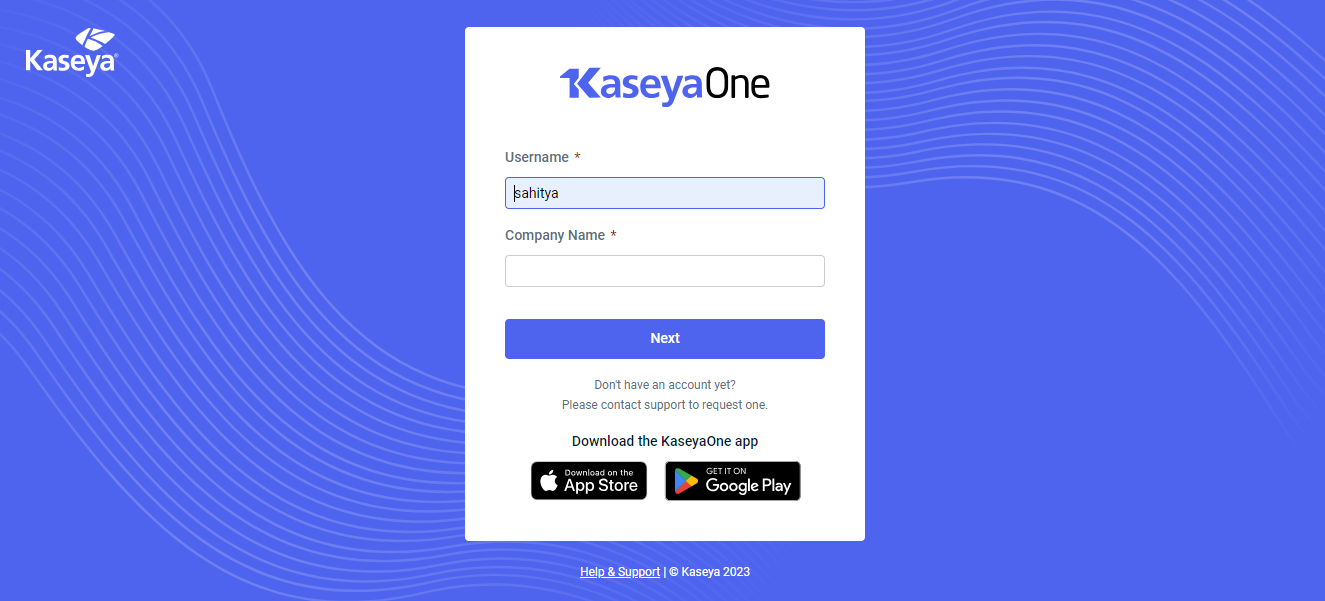
- On the KaseyaOne Login page, enter your KaseyaOne username and the KaseyaOne company you want to connect with your Graphus company. Click Next.
- This step will store KaseyaOne app credentials locally in Graphus for the KaseyaOne tenants. These credentials will be used for further communication with KaseyaOne.
-
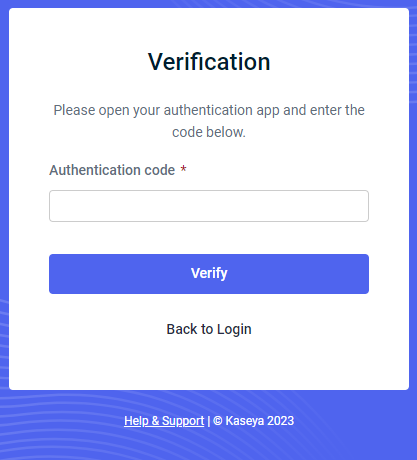
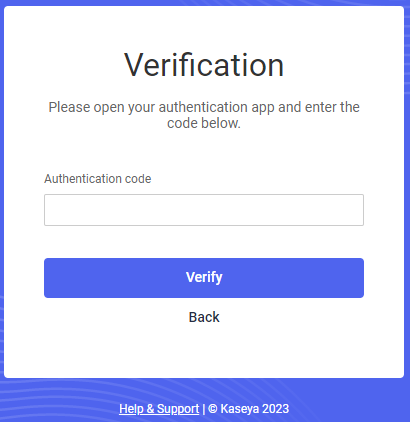
If two-factor authentication is enabled, an authentication code is sent to your authentication app. In the Authentication Code box, enter the authentication code and click Verify.
NOTE Once the KaseyaOne integration is enabled for your company, all users will be able to use Login with KaseyaOne.
NOTE When you forget and want to reset your password, click Forgot Password. Then the page will redirect you to the Forgot Password screen, where you must provide your Username and Company Name. A reset link will be sent to your email address.

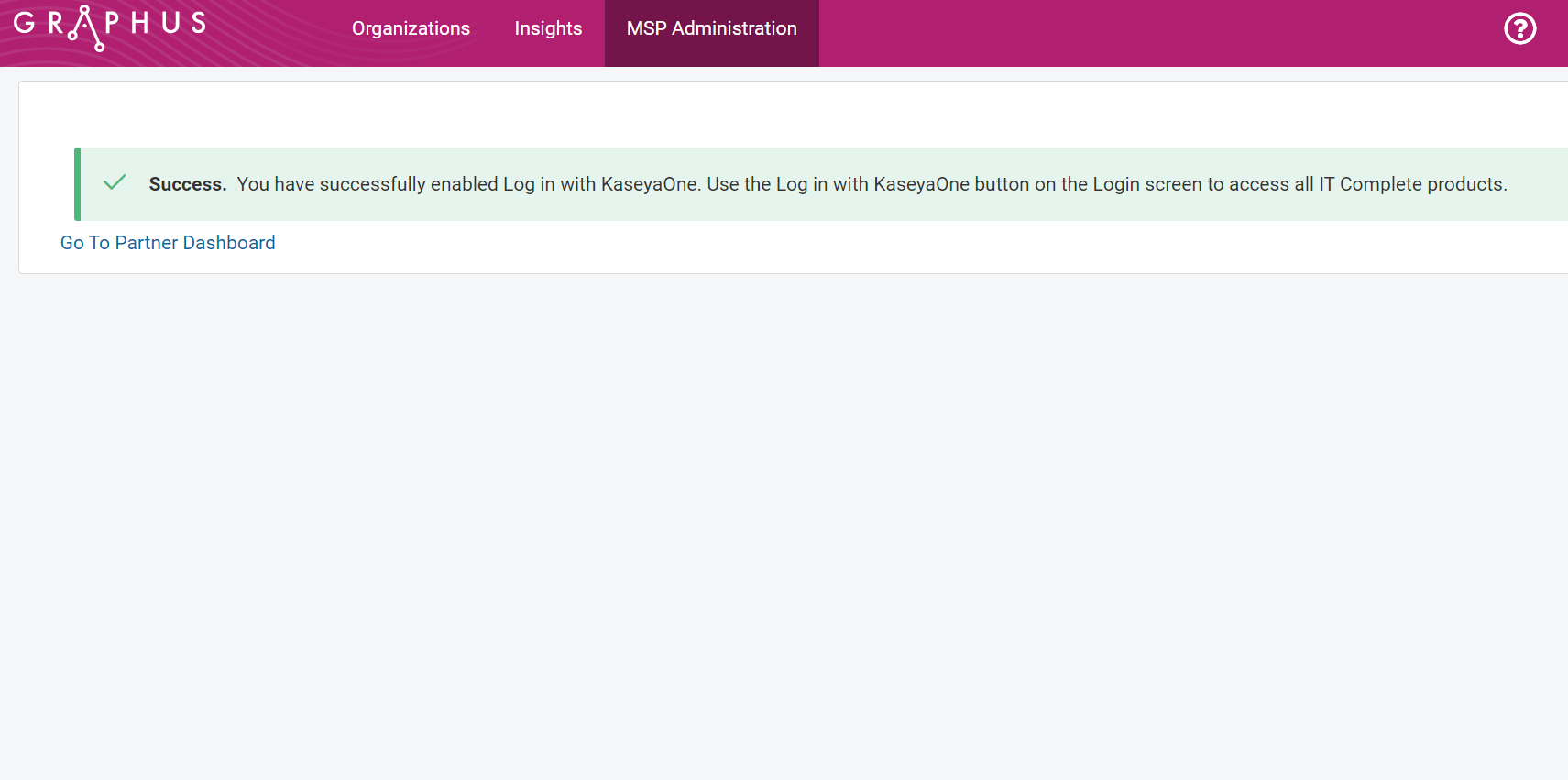
Once you are logged in, you will be redirected to the Graphus portal. A message is displayed indicating that Log in with KaseyaOne was successfully enabled.
IMPORTANT From this moment on unified login will be enabled on Graphus. User(s) whose Graphus email address matches with their KaseyaOne email address can log into Graphus. For users whose email addresses don't match, follow the steps in the User mapping enabled with KaseyaOne: Enable Login with KaseyaOne section below.

Log in with KaseyaOne
After enabling the KaseyaOne integration, users will have the ability to use single sign-on on the Graphus login page. They will also have the ability to jump directly from KaseyaOne into Graphus without the need to sign in.
Log in from the Graphus Portal
Once the KaseyaOne integration is enabled, Graphus users can log into Graphus using their KaseyaOne credentials.
- On the Graphus login page, click the Login with KaseyaOne button.
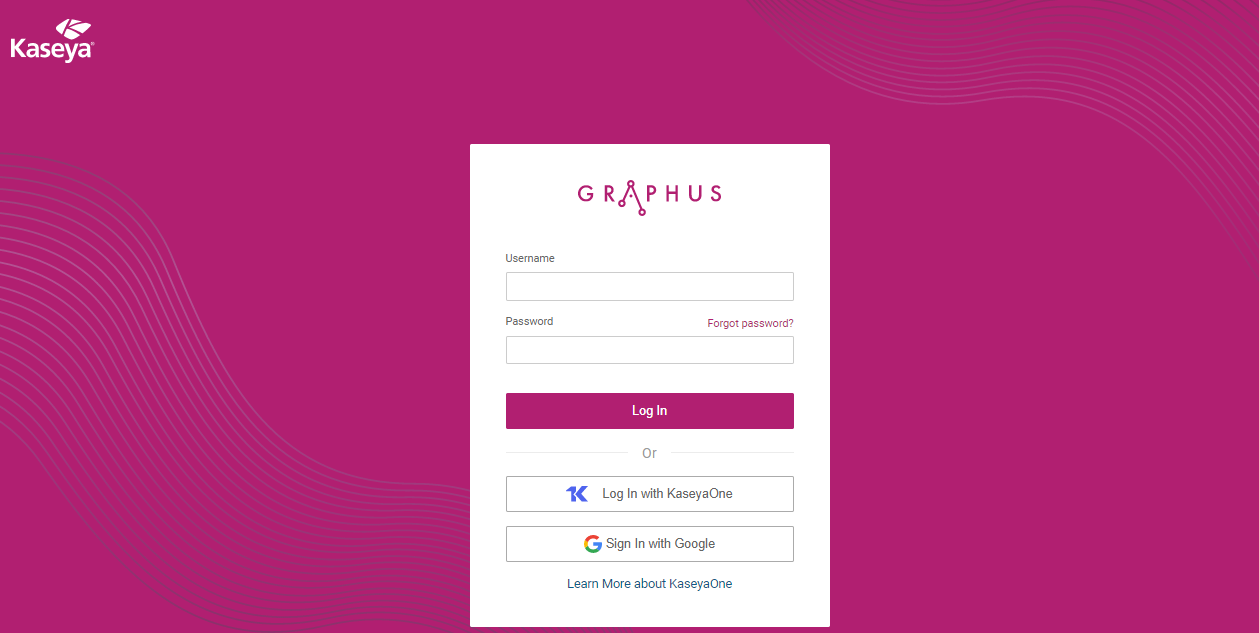
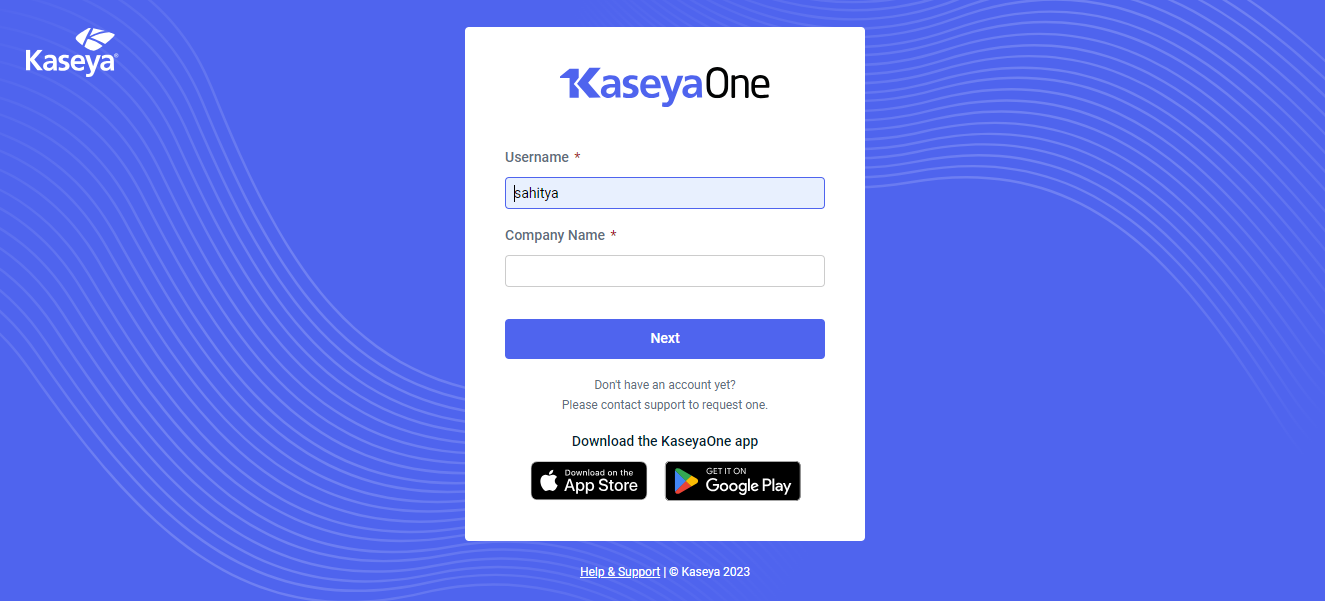
Note: For more information about KaseyaOne, on the Login page, click Learn More about KaseyaOne. - On the KaseyaOne Login page, enter your credentials and the matching KaseyaOne company and click Next.
- In the Authentication Code field, enter your authentication code and click Verify.
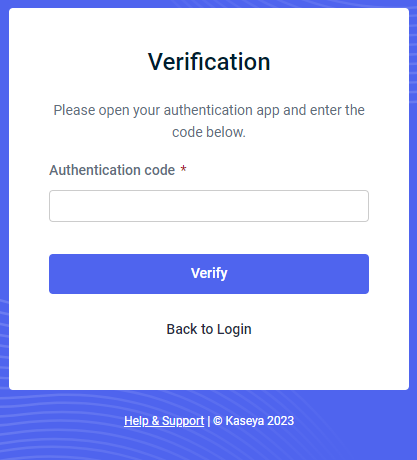
Once a user is verified, the user is logged into the Graphus portal via KaseyaOne credentials with all Graphus local user rights. Your users will also be able to see the KaseyaOne Launchpad which allows them to sign in to other Kaseya Platform products that have unified login set up.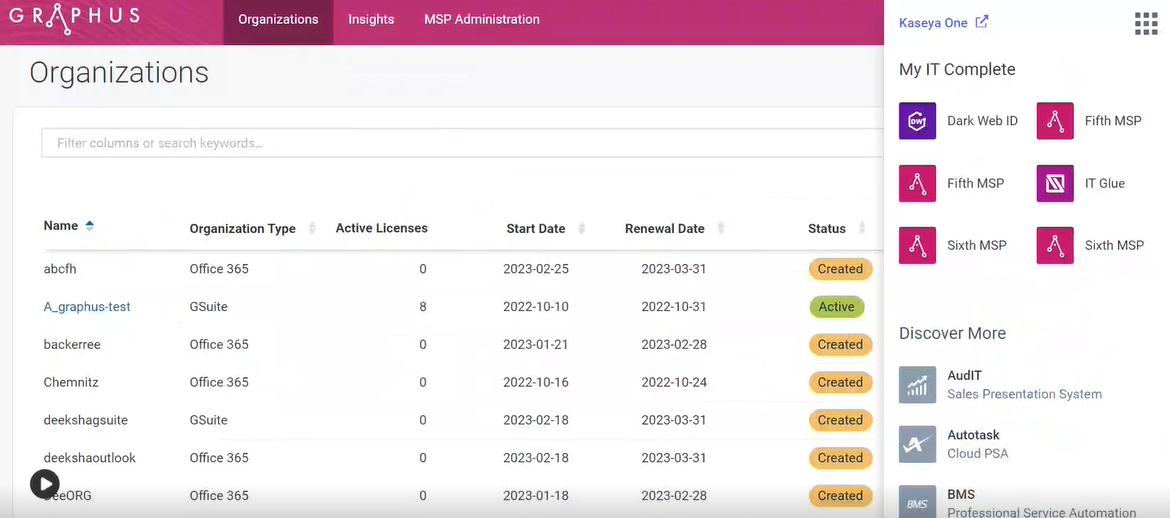
Log in from the KaseyaOne Portal
When Log in with KaseyaOne is enabled for your Graphus user, you will see a Graphus card on the KaseyaOne dashboard. When you click this card, you will be directed to the Graphus portal without the need to log into Graphus.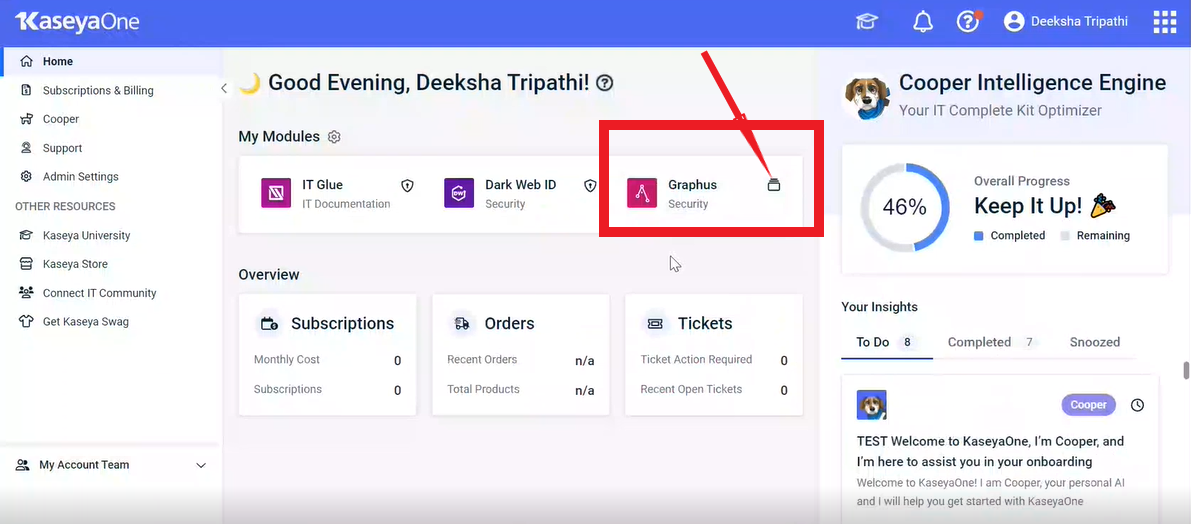
Click the file icon to check your company information (refer to the Multi-Tenant login section below).

User mapping enabled with KaseyaOne: Enable Login with KaseyaOne
IMPORTANT If your Graphus user account email address is not the same as your KaseyaOne user account email address, you will have to map your Graphus and KaseyaOne email addresses.
- You can map your local Graphus account email address with your KaseyaOne account email address by clicking Enable Login with KaseyaOne in your Graphus profile.

- On the KaseyaOne Login page, enter your credentials and the matching KaseyaOne company and click Next.
- In the Authentication Code field, enter your authentication code and click Verify.
-
A message is displayed indicating Log in with KaseyaOne was successfully enabled.
Once you click Enable Log in with KaseyaOne, you will be redirected to the KaseyaOne Login page.
Once the user mapping is completed, Graphus users can log into Graphus using their KaseyaOne credentials.
NOTE If a user tries logging in via KaseyaOne single sign-on without the mapping in place, the following pop-up message will appear.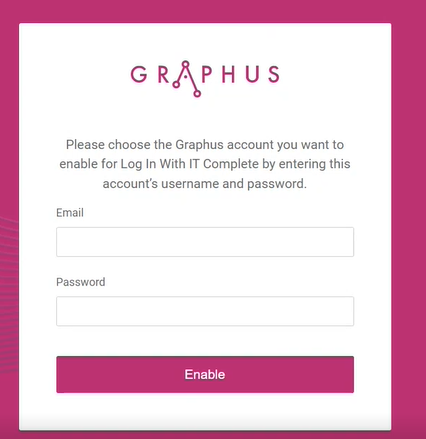
Once the user mapping is completed, Graphus users can log in to Graphus using their KaseyaOne credentials.
Multi-tenant login
This upgraded version of Login with KaseyaOne allows multiple tenant registrations under the same KaseyaOne company. You will be able to add multiple Graphus companies/tenants to one KaseyaOne company. Users with the necessary accounts in these Graphus companies can single sign on to any of these companies.
- Enable the KaseyaOne integration for your Graphus organizations. To do so, activate the Enable Log in with KaseyaOne toggle for each company (refer to the section above Enable KaseyaOne Integration)
- Once the KaseyaOne integration is enabled for more than one Graphus company, users will be able to use unified login for these Graphus companies. When doing so, they will have to pick the Graphus company they want to log into.
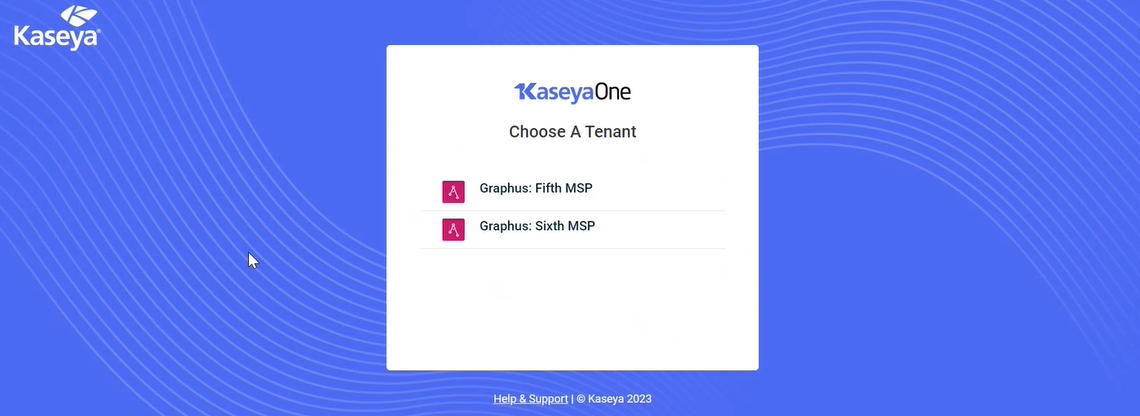
- When accessing Graphus from the KaseyaOne Home screen, users will have to click the file icon on the Graphus card and pick the desired Graphus company.
Disable Log In with KaseyaOne via user mapping
Each user without matching Graphus and KaseyaOne email addresses can disable Log in with KaseyaOne by deactivating the user mapping.
In the upper-right corner, in your profile, click Disable Log In with KaseyaOne to deactivate your user mapping and single sign-on with KaseyaOne.
After successfully disabling Login with KaseyaOne, a success message will be displayed.
Disable Log in with KaseyaOne for your company
- Log into Graphus using your Graphus Credentials. We recommend not using Log in with KaseyaOne.
- Click the KaseyaOne K icon in the top navigation bar.
- Disable the toggle button to deactivate the integration with KaseyaOne. This will disable your users from using Unified Login with KaseyaOne. Once you click the Disable Log in with KaseyaOne toggle, the page is redirected to the KaseyaOne login page to apply the changes.


Log out of Graphus
-
Log Out redirects you to the Login main screen. Select Account > Log Out.
NOTE Logging out from the application will clear the browser cache of any sensitive information stored.


